Read time: 6 minutes
SharePoint Online is a robust application that can handle a high volume of actions. Even when a SharePoint Online migration is going on, all users can use the resources and access their data. When the access requests reach a higher limit where all the resources are exhausted, such a situation is known as Throttling. You may’ve encountered throttling errors like REST calls returning a 429 “Too many requests” error or Blocked with a 503 “Service unavailable.”
SharePoint implements a throttling policy as a technique to maintain the ideal performance limit for all its services. Throttling limits, the number of requests and user actions that run simultaneously to access the resources. Understanding this policy will help in avoiding issues that users face during SharePoint Online migration.
What causes throttling in SharePoint migration?
Experts claim there are rare chances of throttling in SharePoint Online as it provides more than 99% availability and accessibility for all the data. Most of the time, when the situation for throttling occurs, it is due to the custom codes. Such codes are REST and CSOM, which consume the SharePoint Online resources.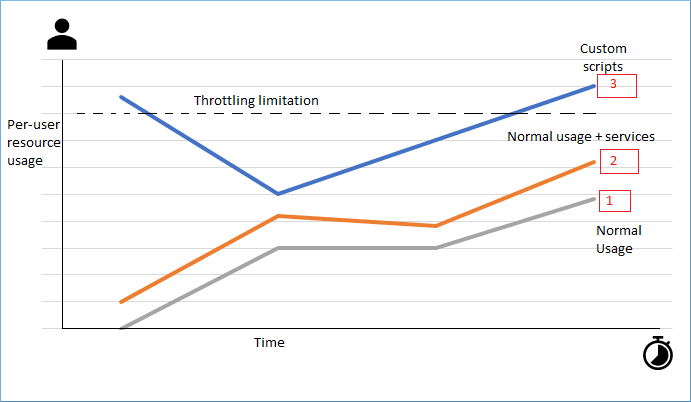
- There are multiple migration instances running at the same time and occupying several resources.
- The typical usage is always under the SharePoint limitation, and they never cause or experience throttling.
- There are additional services that run routinely along with standard services. These further actions are OneDrive uploads, workflows, and customizations.
- The custom scripts that exceed the throttling limit are REST, CSOM and others. While migration is going on and you are uploading files to OneDrive, you may feel that Microsoft OneDrive has stopped working.
How does SharePoint inform about throttling?
As soon as the per-user resource usage crosses the throttling limit, SharePoint stops further requests for a shorter period. Some of the results or impact of SharePoint Online throttling in migration include:
- Suppose the user tries to access site data or a document from a library in SharePoint Online. In that case, the browser will redirect you to a webpage informing you about the throttling details.
- For the custom request calls, SharePoint will return an HTTP error [status code 429 (too many requests) or 503 (server too busy)].
- It can block future requests from an IP address or an account for the time being, which interrupts the progress of the process.
- Interrupts the speed of data transfer, which eventually increases the timeline for completing a migration process.
If the throttling continues to affect the migration process when you are trying to upgrade SharePoint 2016 to SharePoint 2019, SharePoint will completely stop all the ongoing operations. There will be no more requests and information in Microsoft’s Office 365 Message Center.
How to avoid throttling issues in SharePoint?
Suppose you’re migrating from SharePoint on-premises to SharePoint Online or two tenants between SharePoint Online (SPO), and you encounter throttling. SharePoint Online. In that case, you can try the remedies mentioned below to avoid getting throttled in SharePoint Online:
- Try to minimize the number of apps or operation requests from various users.
- Reduce the call frequencies.
- To manage your custom requests, use Microsoft Graph API rather than REST or CSOM.
- Distribute your website traffic smartly so that a single process does not consume more significant resources.
- Employ the Retry-After HTTP header.
- Microsoft Graph APIs offer better scripting facilities and the latest improvements. It also consumes less storage and processing power than other customer scripting services. Microsoft Graph APIs can reduce the chances of throttling substantially.
- The Retry-After HTTP header is a valuable feature when you encounter throttling. The header will ensure a minimum delay in resource requests while the throttling situation is resolved.
- If you use the Retry-After HTTP header, SharePoint Online will automatically deduce the correct time to rerun the request. The unmonitored tasks continue to put requests aggressively and consume lots of storage and CPU power.
What to do if you’re blocked in SharePoint Online?
SharePoint Online blocks a user only in extreme situations of throttling. This rare scenario occurs when Microsoft detects excessive or long-term traffic with the tendency to impact the overall health of the services in SharePoint Online.
Blocking happens at a user or an app level preventing the usage of the problematic process unless the problem is fixed. When your SharePoint subscription is blocked, it requires you to take immediate action to modify the effected process before it’s unblocked.
An automated SharePoint Migration Solution
The primary cause behind the throttling problem is an ongoing migration process where multiple instances are still running. Microsoft experts also advise running migration at a time other than the peak business hours and when no other processes are running. Using the SharePoint Migration Tool (SPMT) or manual methods for migration signifies that the process needs to be run instantly. This might lead to migration failure during a throttling situation, and it will require you to restart the process again.
Therefore, you should prefer a tool like Kernel Migration for SharePoint to migrate SharePoint site content efficiently. The software interface provides all the necessary features to connect SharePoint accounts (both on-premises and online) for migration.
- Apply the filters to migrate specific SharePoint data only.
- Use a scheduling option to run migration jobs as per your availability.
- Take SharePoint site backup within a few minutes and avoid data loss.
- Connect SharePoint sites using multi-factor authentication for secure migration.
- Migrate permissions or remap users to manage access levels on the migrated data.
The tool will show the real-time status of the process in a new window on the screen to allow you to track the ongoing migration progress.
Final Words
SharePoint Online throttling in migration may result in a slow data transfer. However, it’s impossible to dodge throttling rather you can try using the resources without going beyond this throttling limit. SharePoint Migration tool is a smart alternative to manual methods for migrating SharePoint site content while being within the throttling limits. It allows easy scheduling of data transfer so that the throttling limit is maintained.